OnlySwitch for Mac · Guide
How to Hide Desktop Icons on Mac
If you’re about to share your screen or take a screenshot, you can hide your desktop icons in one click from the menu bar. Your files stay in the Desktop folder and remain accessible in Finder.
Download OnlySwitch for MacHide your icons from the menu bar
- Install OnlySwitch and open it from your Applications folder.
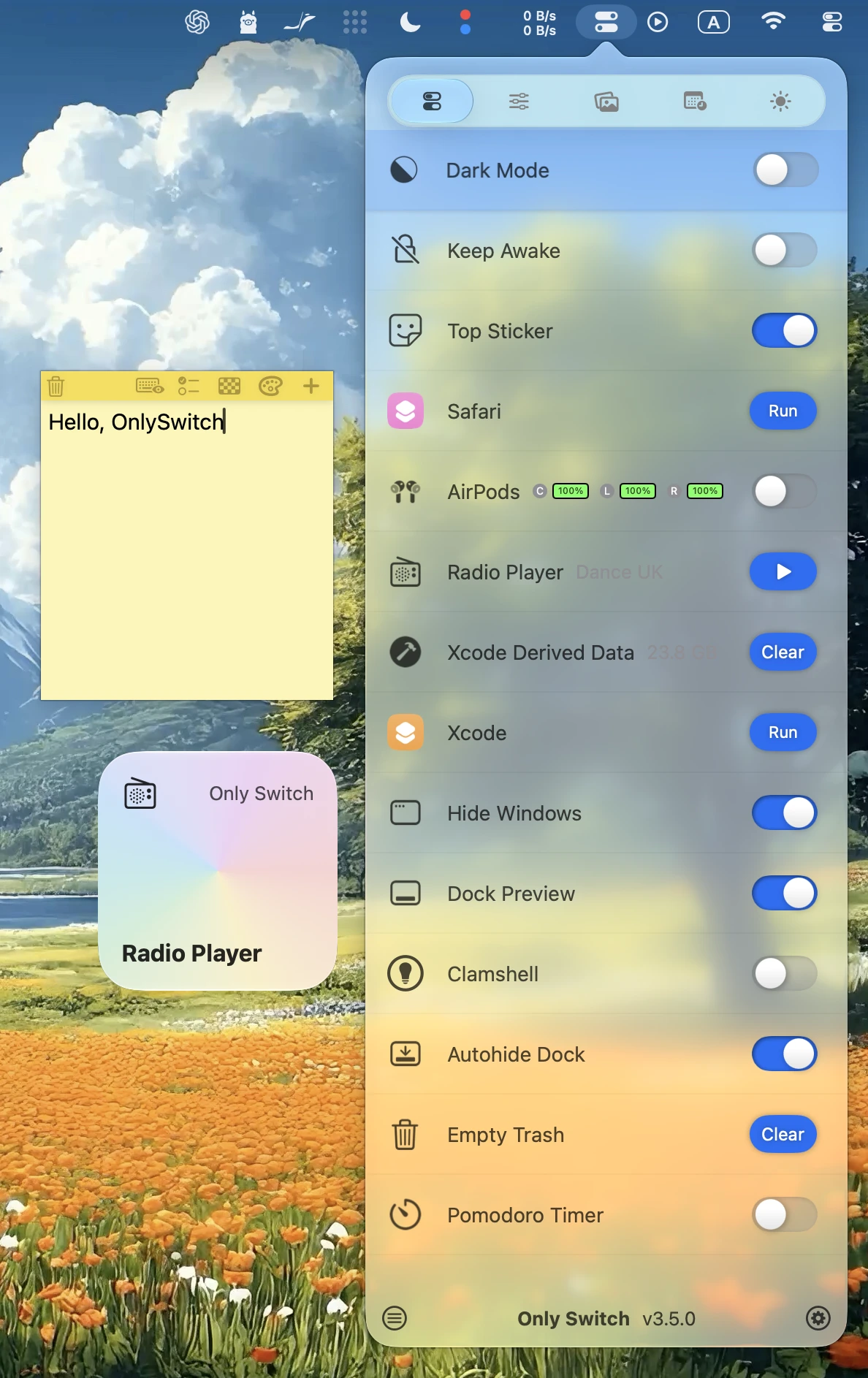
- Click the OnlySwitch icon in the macOS menu bar.
- Turn on Hide Desktop. If you don’t see it, open OnlySwitch Settings and add it to your switch list.
- When you’re done sharing or recording, turn the switch off to show your desktop icons again.
Can I still open a file on my desktop?
Yes. Open Finder and choose Desktop in the sidebar. The switch hides the icons on screen; it doesn’t move or delete the files. If you’re sharing your screen, close any Finder windows or apps that show files you want to keep private.