OnlySwitch for Mac · Guide
How to Keep Your Mac Awake
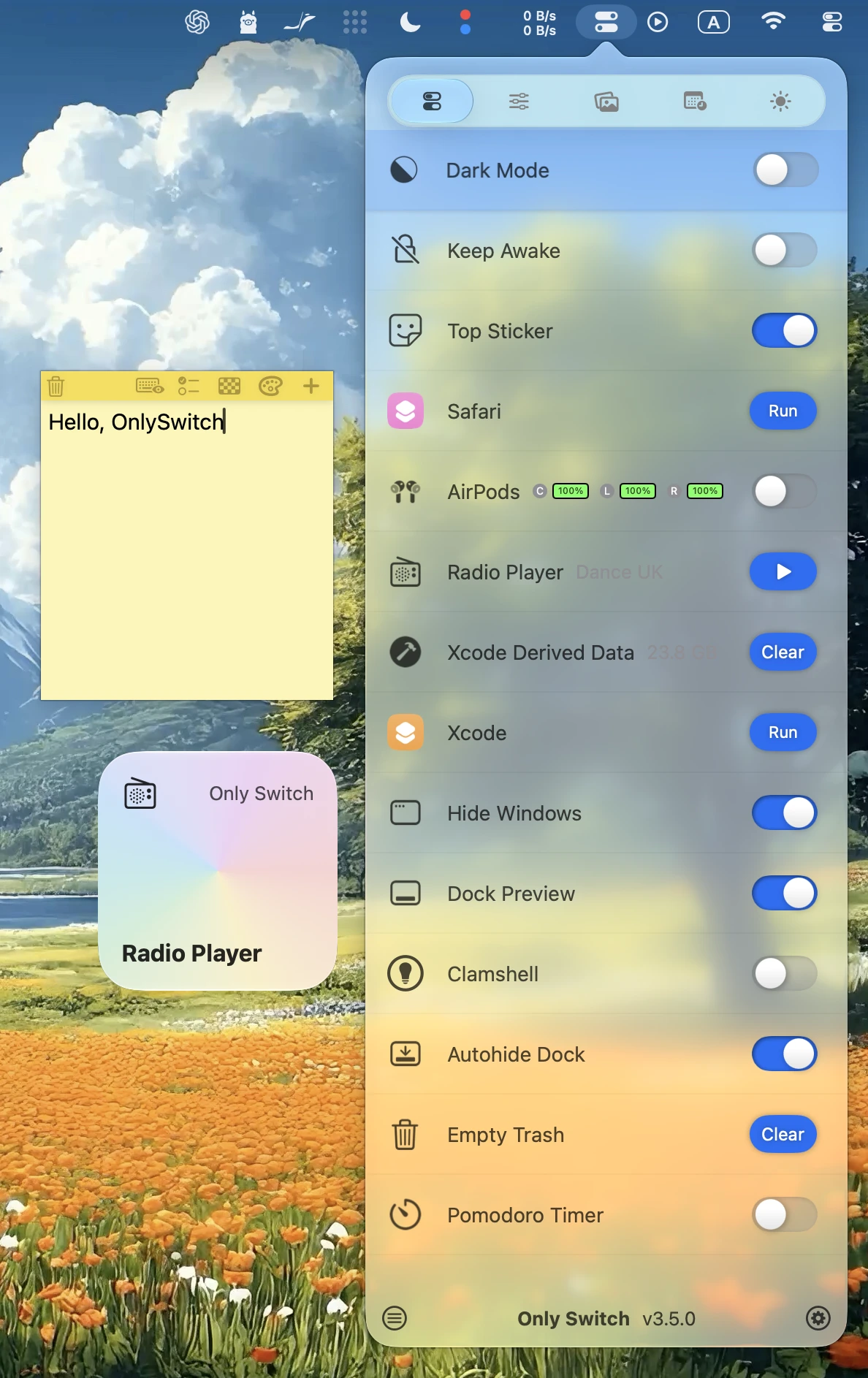
When a download, export, or backup needs more time, turn on Keep Awake in the menu bar. It prevents your Mac from sleeping due to inactivity until you turn the switch off.
Download OnlySwitch for MacPrevent idle sleep with OnlySwitch
- Install OnlySwitch and open it from your Applications folder.
- Click the OnlySwitch icon in the macOS menu bar and turn on Keep Awake. If it’s missing, add it to your switch list in OnlySwitch Settings.
- Leave your MacBook lid open while the task runs. Turn the switch off when the task finishes to restore normal idle sleep.
What happens if I put my Mac to sleep myself?
Enable Turn off after sleep for Keep Awake if you want OnlySwitch to switch it off when you manually put the Mac to sleep.
Can I do this without installing an app?
On a MacBook plugged into power, look under System Settings → Battery → Options for the setting that prevents automatic sleep when the display is off. On a desktop Mac, look under System Settings → Energy. See Apple’s sleep settings guide for the options available on your Mac.